Reports
What reports you get
Every Inventory comes with a set of built-in reports:
| Report | Stage | Notes |
|---|---|---|
| Inventory Raw Data | During the count | Every scanned record |
| Location Summary | Interim + Final | Totals per location |
| Device Summary | During the count | Totals per scanning device |
| Inventory Summary | Interim + Final | A Final PDF is required for completion |
| Variance Summary | Interim + Final | Not available on Starter |
| Change Audit Log | Final | Every edit made after scanning |
| Exception Summary | Interim + Final | Duplicates and unresolved items |
How versions work
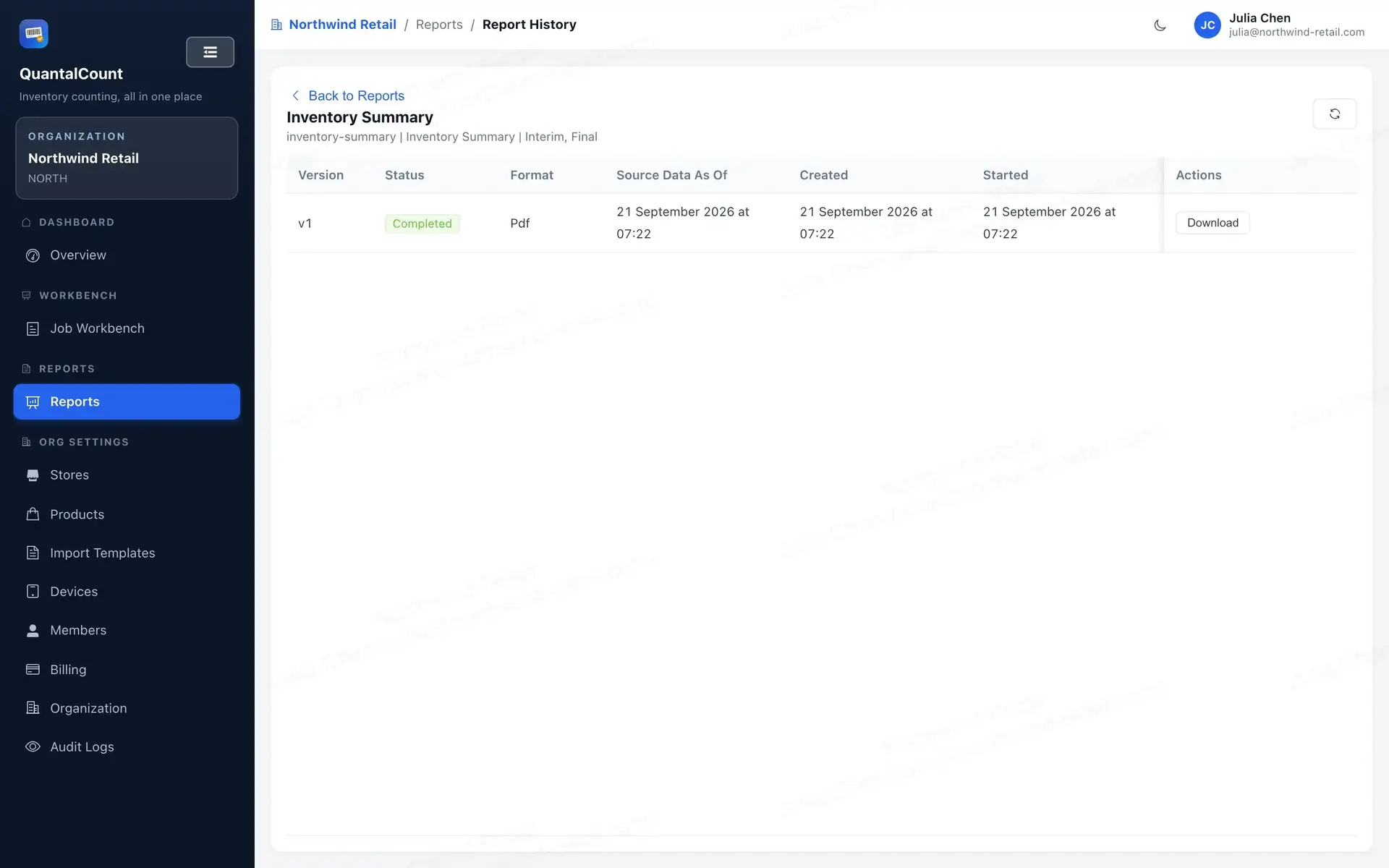
Reports come out as PDFs, and every generation creates a new numbered version:
- Click "generate new version" and the version number ticks up.
- Generation runs in the background; if it fails you can retry.
- Once generated, a PDF never changes. Want fresher numbers? Generate a new version.
- You can only generate new versions before the Inventory is completed or cancelled. Existing versions remain available afterwards.
Where to find them
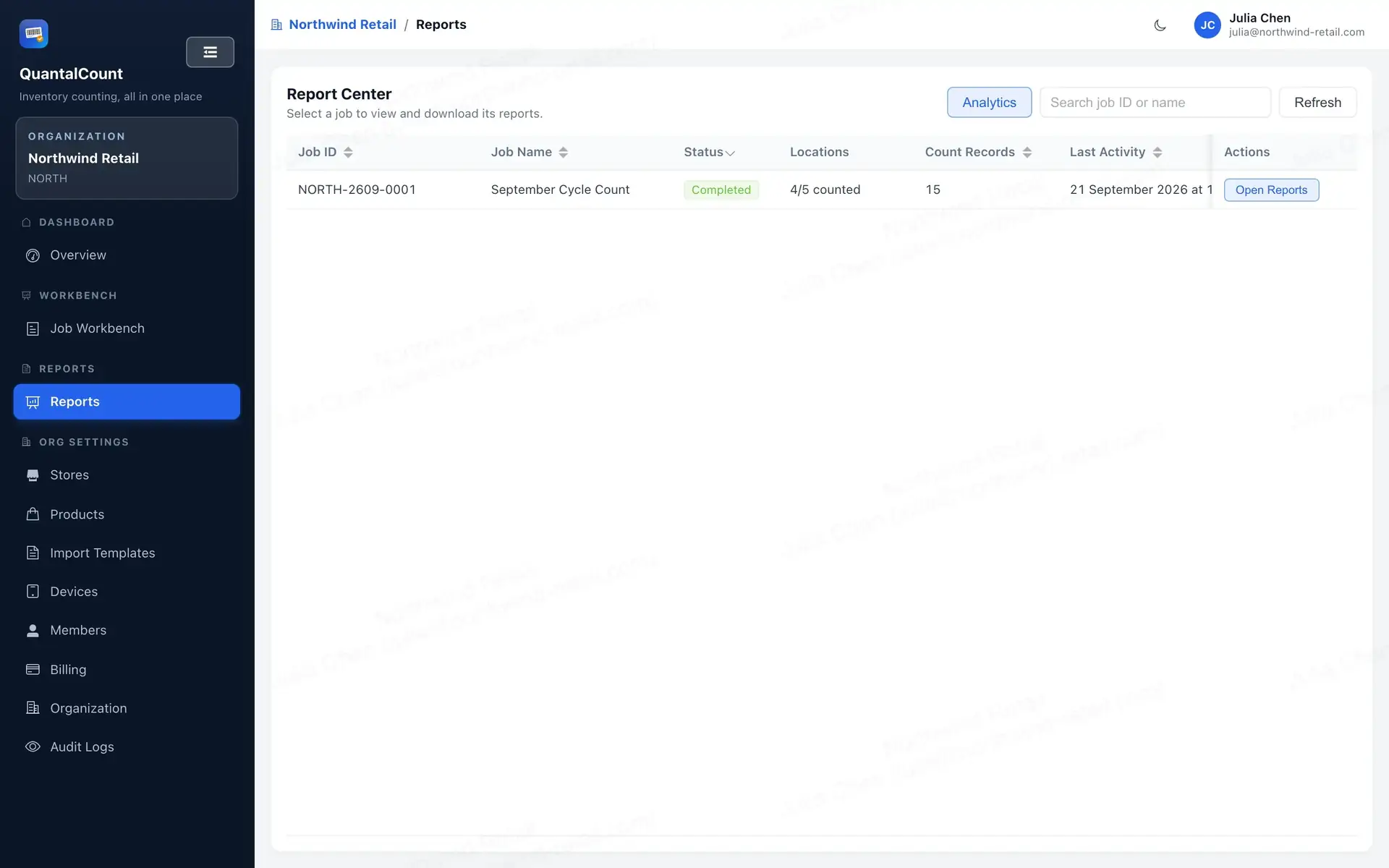
- Inventory → Reports & Exports → Reports — generate and browse reports for the current Inventory.
- Administrate → History — pick an Inventory, pick a report, browse all versions and download.
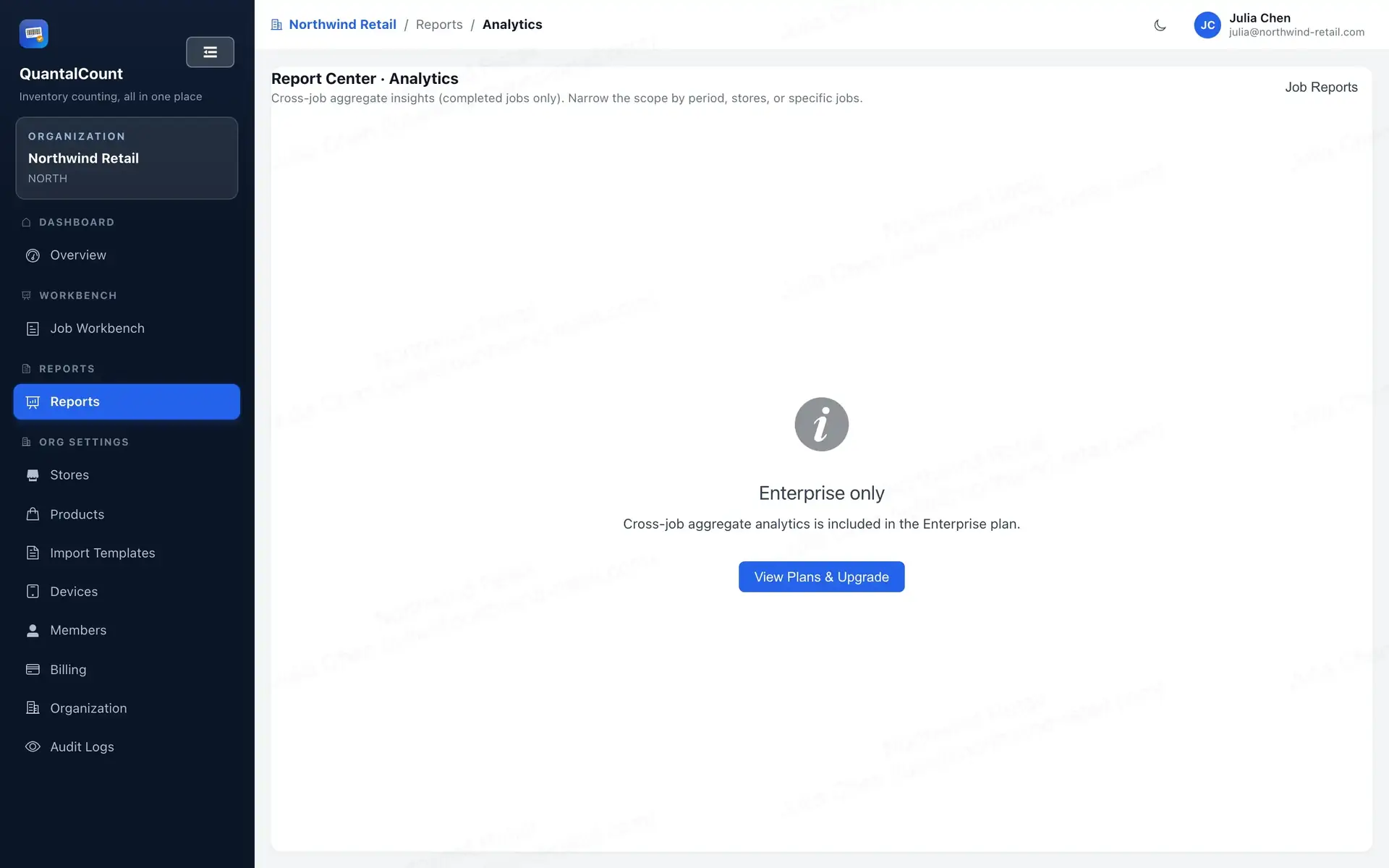
Cross-inventory analytics (Enterprise)
Enterprise plans also get Administrate → Analytics, which looks across your completed Inventories:
- Stock value and shrinkage over time (weekly/monthly, at retail or cost)
- Which products, categories, or brands lose the most
- Which locations have the biggest variances (drill in for details)
- How your people and devices perform
Every analysis can be exported to PDF. Because analytics reads the product data saved when each Inventory completed, the numbers don't shift when you upload a new catalogue later.
On other plans you'll see an upgrade prompt instead.